How to Make Professional Certificates Online With No Design Skills
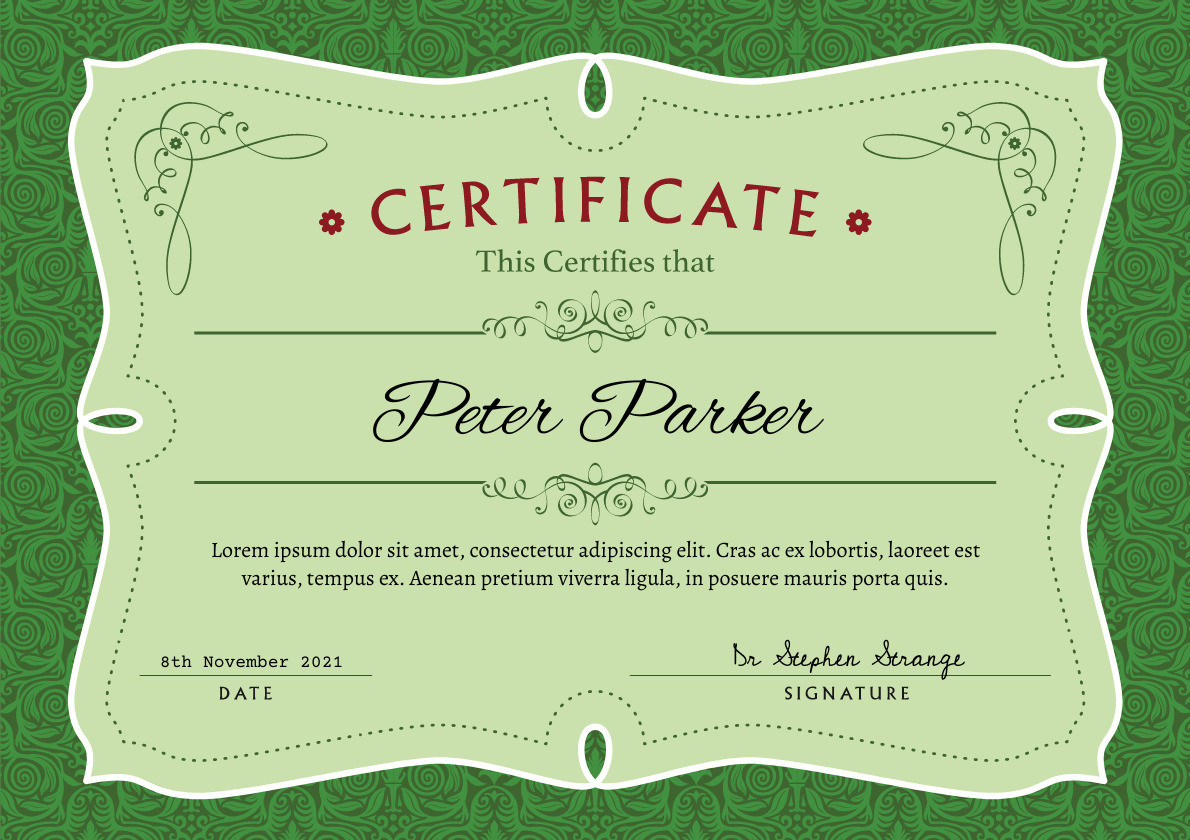
If you’ve ever needed to create a certificate and had no idea where to start, you’re not alone. Most people aren’t graphic designers, but that shouldn’t stop you from producing something that looks polished and professional. Whether you’re a teacher recognizing student achievement, an HR manager honoring a top performer, or a small business owner handing out training completions, the process should be fast, flexible, and frustration-free. The good news is that modern online tools have made certificate creation genuinely accessible to everyone, regardless of technical background.
Why Customization Matters More Than You Think
A generic certificate doesn’t just look lazy. It can actually undermine the moment it’s meant to celebrate. When someone receives a certificate, they’re holding proof that their effort was seen and acknowledged. A template you barely edited sends a very different message than one that reflects your brand, your colors, or even just the name of your organization done right.
Customization doesn’t mean complicated. Today’s best certificate tools let you adjust fonts, swap colors, drop in a logo, and change placeholder text in a matter of minutes. The key is finding a platform that offers meaningful design options without requiring you to know anything about design theory or software.
For the people creating these certificates, the challenge is usually the same: they have a clear purpose in mind, but no design background to execute it. That’s exactly why drag-and-drop, template-based tools have become the go-to solution for teachers, coaches, office managers, nonprofit coordinators, and event planners across the board.
What to Look for in an Online Certificate Maker
Before you commit to any tool, it helps to know what separates a frustrating experience from a smooth one. Here are the features that matter most for non-designers:
- Pre-designed templates: You should be able to browse and filter templates by purpose, such as recognition, completion, attendance, or achievement, so you’re not starting from a blank page.
- Easy text editing: Swapping out names, dates, and titles should be as simple as clicking and typing, with no formatting headaches.
- Font and color controls: Being able to match your organization’s look and feel, even without a formal brand kit, adds credibility to your certificate.
- Logo and image upload: A certificate with your school logo or company branding looks significantly more official than one without.
- Download and print options: The final file should be export-ready in a standard format, suitable for printing or sharing digitally.
- No design software required: Everything should happen in a browser with no downloads, installations, or tutorials required before you get started.
10 Tips for Making Great Certificates Without Design Experience
- Start with a template that’s close to your goal, not a blank canvas.
Choosing a template that already fits your use case, whether it’s a diploma layout, a recognition award, or a completion certificate, means you’re editing rather than building. That alone cuts the time investment dramatically. Look for templates that have the structural elements you need already in place, like signature lines, decorative borders, and title sections.
- Replace placeholder text before you change anything else.
The fastest way to make a certificate your own is to update the core text first: the title, the recipient name field, the body language, and the date. Doing this early helps you see how the certificate will actually look with real content before you spend time on visual adjustments.
- Stick to two fonts maximum.
Most certificate templates already use a pairing that works. If you decide to change the fonts, use one for headings or the certificate title and one for body text. Mixing three or more fonts quickly makes a design feel chaotic, even to someone without a trained eye.
- Use your brand’s hex codes for color consistency.
If you’re creating a certificate on behalf of a school, company, or organization, look up your official brand colors and enter the hex codes directly into the color picker. This single step elevates the whole design without requiring any additional creativity on your part.
- Upload your logo early.
Placing your logo early in the process helps anchor the design. It gives you a sense of scale and lets you build the rest of the layout around it. Most tools let you resize and reposition logos freely, so you can tuck it into a corner or center it prominently depending on the format.
- Use a practical how-to approach with Adobe Express.
The certificate maker from Adobe Express is one of the most approachable options available for anyone who needs professional results without professional skills. Here’s how a typical workflow looks: Open the tool and browse the certificate template library, filtering by category if needed. Click a template you like to open it in the editor. Select any text block to edit the name, title, date, or descriptive copy directly. Use the Elements panel on the left to browse icons, shapes, borders, and decorative assets from the built-in library. Upload your logo or a digital signature image from your device using the upload option. Adjust colors to align with your brand using the color picker. When you’re satisfied, hit the Download button to save the certificate to your device in a print-ready format. The whole process can take as little as five to ten minutes, and no account is required to get started browsing templates.
- Add a signature line even if you’re not printing.
A certificate that includes a designated signature field, whether it’s a line for a handwritten signature or a scanned digital one, looks more official and complete. Most templates include this already, but if yours doesn’t, a simple horizontal line with a name and title below it does the job effectively.
- Resize your design for digital sharing in one step.
If your certificate is going to be emailed or shared online rather than printed, consider resizing it to fit common digital formats. Many tools offer one-click resizing options that reformat your layout for different dimensions without distorting your content.
- Save your design as a reusable template.
If you’re going to be issuing certificates regularly, such as for a recurring training program, an ongoing class, or monthly employee recognition, save your finished design as a template. That way you only need to change the recipient name and date for future versions, which takes about thirty seconds.
- Preview before you download.
Always do a final review before exporting. Check for typos, confirm the recipient name is spelled correctly, make sure the date is accurate, and verify that all the text is fully visible and not cut off by borders or decorative elements. What looks fine on screen at a small zoom level sometimes reveals errors at full size.
Common Certificate Types You Can Create Without Design Skills
Understanding the range of certificate use cases helps you find the right template faster. Here are the most common types people create using online tools:
- Certificates of Achievement: For recognizing academic performance, athletic accomplishment, or personal goals met.
- Certificates of Completion: Used by educators, trainers, and course providers to mark the end of a program or curriculum.
- Certificates of Attendance: For workshops, conferences, webinars, and events where participation itself deserves acknowledgment.
- Employee Recognition Certificates: Including employee of the month, years of service, or performance-based awards.
- Diplomas: Formal academic documents often issued by training programs, community organizations, or homeschool families.
- Gift Certificates: For small businesses offering services or retail credit in a printable, personalized format.
Each of these serves a different purpose and has slightly different design conventions, which is why template libraries organized by category are so useful for non-designers. You can start with a layout already built for your specific need rather than adapting something generic.
How to Print or Share Your Certificate Once It’s Done
Once you download your certificate, you have a few options depending on your needs. For physical certificates, standard letter-size paper in landscape orientation (8.5 by 11 inches) is the most common format. Printing on cardstock instead of regular paper gives a noticeably more premium feel and is worth the small extra cost for important recognition moments.
For digital sharing, a PDF is generally the cleanest format because it preserves fonts and layout regardless of the recipient’s device or operating system. Some tools also allow you to share a direct link to the certificate rather than downloading a file, which can be convenient for virtual events or online course completions.
If you need to send the same certificate to multiple recipients with only the name and details changed, consider batching the process. Some platforms allow bulk creation from a spreadsheet, though for smaller volumes, duplicating and editing manually is often just as fast.
FAQs
Do I need a design background to use an online certificate maker?
Not at all. Modern certificate tools are built specifically for people without any design training. The template-based approach means the layout, spacing, and visual hierarchy are already handled for you. Your job is simply to update the text, swap in your branding elements, and download. Most tools use drag-and-drop editors that behave like simple word processors, so if you’ve ever edited a document online, you already have the skills you need. The learning curve is typically measured in minutes, not hours.
Are free certificate makers good enough for professional use?
For the vast majority of everyday certificate needs, yes. Free tiers on most reputable platforms include access to a solid library of templates, basic text and color editing, and the ability to download a finished file. Where paid tiers tend to add value is in access to premium templates, expanded font libraries, brand kit storage, and features like bulk generation or custom watermark removal. If you’re creating certificates for a classroom, a small team, or a single event, the free version of most tools will serve you well. For larger organizations issuing hundreds of certificates regularly, a paid upgrade often pays for itself in time saved. For tracking the certificates you issue and managing recipient records over time, a dedicated tool like Airtable can help you organize recipient information, track issuance dates, and maintain a log of awards without needing a complex system.
What file format should I download my certificate in?
PDF is the most universally recommended format for certificates because it preserves the exact layout, fonts, and colors on any device or operating system. It also tends to print cleanly without any unexpected reformatting. If you specifically need to share a certificate on social media or embed it in a digital presentation, a high-resolution PNG or JPEG may be more practical. Check that your chosen tool supports the output format you need before investing time in the design.
Can I create certificates on my phone, or do I need a computer?
Many online certificate makers have mobile-optimized versions or dedicated apps that allow you to design and download certificates from a smartphone or tablet. That said, the editing experience on a larger screen tends to be more precise and comfortable, especially when positioning elements and checking fine details like text size and alignment. If you’re doing light editing on a template with minimal changes, a phone works fine. If you’re building something more custom, a laptop or desktop will give you more control.
How do I make my certificate look more official?
There are a few simple additions that significantly increase the perceived legitimacy of a certificate. A border or decorative frame immediately signals “formal document” to the eye. Including an official logo or seal, a clearly labeled signature line, and a specific date all contribute to the official feel. Using a more formal font for the title, something with serif styling, adds gravity. Printing on heavier paper stock, such as 80 lb. cardstock, makes a physical difference when the certificate is held. Finally, making sure the recipient’s name is spelled correctly and displayed prominently is perhaps the single most important detail, both for authenticity and for the recipient’s experience.
Conclusion
You don’t need design experience, expensive software, or a lot of time to create a certificate that looks polished and professional. The tools available today make the whole process approachable for teachers, managers, coaches, and organizers of every kind. The right platform puts a library of well-designed templates at your fingertips and gets out of your way while you make the handful of customizations that matter most.
Start with a clear sense of your purpose, choose a template that fits it, and focus your energy on the details that make a certificate personal: the name, the occasion, the branding, and the finishing touches that show the recipient you put real thought into recognizing their effort. That combination, good tools and genuine intent, is all it takes to create something worth keeping.