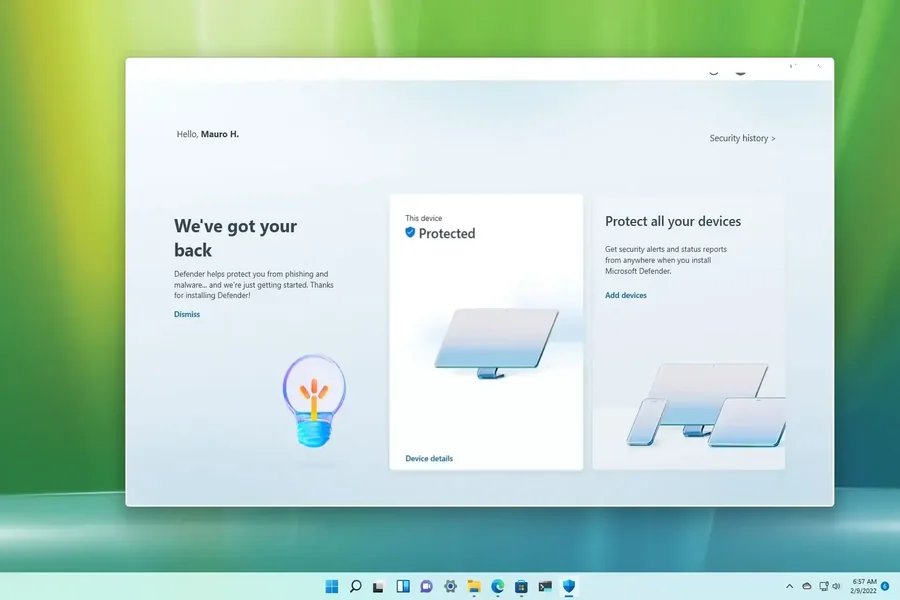
Is Windows Defender enough to protect Windows 11 users? Microsoft Defender Antivirus comes built into Windows 11. It provides real-time protection against viruses, malware, ransomware, spyware, phishing attacks, and other cyber threats.
In this guide, you’ll learn how Windows Defender protects Windows 11, its top security features, benefits, limitations, and how to maximize your PC’s protection.
What Is Windows Defender?
Windows Defender is Microsoft’s built-in antivirus and endpoint security solution. Among the many useful Windows 11 productivity widgets and tools, Defender stands out as one of the most important built-in features, helping protect your device from malware, ransomware, phishing, and other cyber threats.
In Microsoft Windows 11, Defender automatically updates its virus definitions through Windows Update and uses cloud-based intelligence to detect suspicious activities in real time.
How Windows Defender Protects Windows 11 from Cyber Threats
Windows Defender secures your PC through multiple advanced security layers.
Real-Time Protection Against Malware
Real-time protection in the Windows 11 operating system continuously scans files, applications, downloads, USB drives, and running programs before they can damage your computer.
If malicious software is detected, Windows Defender immediately quarantines or removes it.
Cloud-Based Protection
Your Desktop or PC Windows 11, Microsoft’s cloud security system instantly analyzes suspicious behavior.
Benefits include:
- Faster malware detection
- AI-powered threat intelligence
- Protection against zero-day attacks
- Continuous security updates
Ransomware Protection
One of Windows Defender’s strongest features is Controlled Folder Access, which prevents ransomware from encrypting important files.
Protected folders include:
- Documents
- Pictures
- Desktop
- Videos
- Custom folders
Phishing Protection
Windows Defender helps protect users from phishing websites and fake login pages through Microsoft SmartScreen.
It blocks:
- Fake banking websites
- Fraudulent shopping websites
- Malicious downloads
- Scam emails with dangerous links
This feature significantly reduces online fraud.
Firewall and Network Protection
Whether you recently completed your Win11 download or have been using Windows 11 for some time, Windows Defender works alongside Windows Defender Firewall to monitor incoming and outgoing network traffic.
The firewall blocks:
- Unauthorized connections
- Suspicious applications
- Network attacks
- Remote hacking attempts
Exploit Protection
Exploit Protection strengthens security by defending against vulnerabilities that hackers may target before software patches become available.
It protects:
- Memory
- Applications
- Browsers
- Operating system processes
Key Security Features of Windows Defender
Windows Defender includes several advanced security features.
Virus & Threat Protection
Scans your PC for:
- Viruses
- Worms
- Trojans
- Spyware
- Rootkits
- Adware
Device Security
Windows 11 integrates hardware-based security technologies including:
- TPM 2.0
- Secure Boot
- Core Isolation
- Memory Integrity
These features help prevent firmware attacks.
Account Protection
Windows Defender encourages secure authentication through:
- Windows Hello
- PIN security
- Fingerprint login
- Facial recognition
- Microsoft account protection
App & Browser Control
This feature protects users from dangerous downloads and suspicious applications.
It also monitors:
- Browser activity
- Downloaded files
- Unknown software
- Potentially unwanted applications (PUA)
Family Safety
Windows Defender integrates with Microsoft Family Safety to help parents manage children’s online activities.
Features include:
- Screen time limits
- Website filtering
- App restrictions
- Activity reports
- Location tracking
How to Turn On Windows Defender in Windows 11
If Windows Defender is disabled, you can enable it in just a few steps.
Navigation Steps
- Open Start Menu.
- Go to Settings.
- Click Privacy & Security.
- Select Windows Security.
- Open Virus & Threat Protection.
- Click Manage Settings.
- Turn on Real-Time Protection.
- Enable Cloud-Delivered Protection.
- Enable Tamper Protection.
These settings ensure maximum security.
Windows Defender Security After Upgrading to Windows 11
Planning to move to Windows 11? Once you know how to upgrade Windows 10 to Windows 11, you can benefit from improved Windows Defender features designed to protect your device from malware, ransomware, phishing, and other online threats.
Why Windows Defender Is Enough for Most Windows 11 Users
Microsoft has significantly improved Windows Defender over the years. Independent security tests consistently rank it among the top antivirus solutions.
For users who:
- Browse safely
- Keep Windows updated
- Avoid suspicious downloads
- Enable built-in security features
Key Takeaway on Windows Defender and Windows 11 Protection
Now you have a clear understanding of how Windows Defender helps protect Windows 11 against malware, ransomware, phishing, and other cyber threats. As Microsoft’s built-in security solution, it provides real-time protection, regular security updates, and essential tools to help keep your device and personal data safer.
For most everyday users, Windows Defender offers a reliable level of protection without the need for additional antivirus software. However, the best security comes from using it correctly: keep Windows 11 updated, make sure Defender features are enabled, avoid suspicious links or downloads, and use strong passwords. When you buy Windows 11, you also get built-in Windows Defender features that help protect your device while browsing, block malware, and improve overall system security.