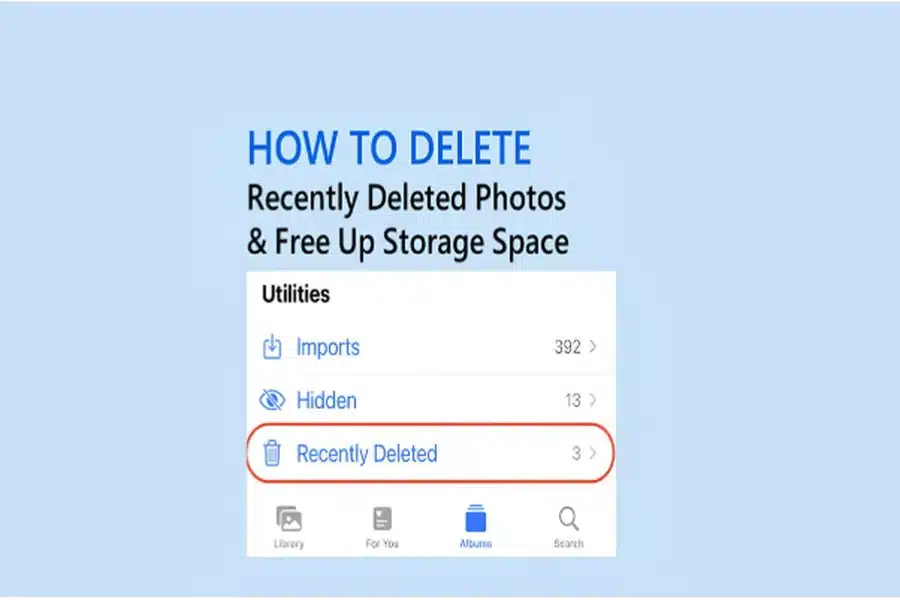
Modern smartphones make it incredibly easy to capture hundreds of photos daily. Over time, these images accumulate and take up large chunks of valuable storage. While many users delete unwanted photos, they often overlook the Recently Deleted folder. This temporary holding space continues to store photos for weeks, still consuming memory and slowing down the device.
Most users assume that once they tap “delete,” the photo is gone forever. In reality, it remains retrievable for 30 days in the Recently Deleted folder. Unless you manually remove it from there, it still occupies storage on your phone. This guide explains how to delete recently deleted photos and why it’s crucial to clear that folder regularly.
Why Delete Twice?
Before learning how to clear the Recently Deleted folder, it is important to understand why your phone has this feature in the first place.
Hidden Storage Drain
When you delete a photo, it doesn’t immediately vanish from your phone. Instead, it gets moved to a separate folder designed for temporary recovery. While useful, this function quietly eats up space on your device without warning. Your storage will stay full even after a major photo cleanup if you forget this step.
This feature is meant to act as a backup, but it often confuses users. Many assume they’ve freed up space, only to discover that nothing has improved. Photos and videos use up considerable memory. Learning how to delete recently deleted photos is essential to prevent this hidden drain from slowing down your phone over time.
Clutter Buildup Over Time
As you continue deleting photos, they all collect in the Recently Deleted folder. Since they remain there for up to 30 days, they can pile up quickly. Hundreds of photos take up gigabytes of space if not properly removed. Even a few short videos can clog up your storage in just days.
This buildup creates unnecessary clutter in your device’s memory. It makes managing your gallery more difficult and confusing. You might even accidentally restore unwanted photos while browsing. Regularly clearing this folder helps keep your phone organized and running efficiently without delay.
Not Actually Private
Photos left in the Recently Deleted folder are still accessible to anyone with your phone. If someone gains access, they can view or restore those deleted images. This poses a privacy risk, especially with personal or sensitive content. You might believe the files are gone, but they are not fully erased.
Lending or selling your device without clearing this folder is dangerous. Private moments, financial screenshots, or sensitive documents may still be stored. Anyone browsing your phone could easily find them within a few taps. To protect your privacy, make sure you clear everything permanently and completely.
iPhone-Specific Steps
If you are using an iPhone, here is how you can permanently remove deleted photos and free up space.
1. Open the Photos App
Start by unlocking your iPhone and locating the Photos app. Tap to open it and browse your albums. This app stores all images, including deleted ones. You’ll use it to access and permanently erase files from your Recently Deleted folder quickly.
Once opened, navigate to the bottom bar in the app interface. Tap on the “Albums” tab to see grouped categories. This includes Recents, Favorites, and more. Scroll down until you find the section labeled “Utilities,” where the Recently Deleted folder resides.
2. Tap on Albums
Within the Albums section, look for the Recently Deleted album. It is typically at the bottom of the list. This folder holds all deleted items for 30 days. You’ll be able to see how many days remain before each file is permanently deleted by the system.
Tap on the folder to open it and view your deleted content. All the photos and videos you’ve deleted recently will be displayed here. You’ll notice the day count under each thumbnail. This shows exactly how long each file will remain unless manually deleted.
3. Access Recently Deleted
To begin the cleanup process, tap the “Select” option at the top right. You can now choose individual items or opt to select all of them at once. This enables batch deletion for faster clearing. Make sure you review the files before taking the next step.
After selecting the images, tap “Delete” at the bottom left of the screen. A confirmation prompt will appear asking if you want to delete permanently. Confirm your action to erase the selected files immediately. The space they used will now be freed up.
4. Delete Permanently
This action cannot be undone once confirmed, so be cautious. Make sure you aren’t deleting anything important by mistake. If unsure, you can back up the images before removing them. This way, you still have a copy saved somewhere secure before final deletion.
After deletion, return to your Albums tab and verify the folder is empty. If it still shows items, repeat the process. Always double-check to ensure the files are truly gone. Now your storage space should be noticeably increased and your photo library better managed.
Android-Specific Steps
If you use an Android device, the steps vary slightly based on your phone model, but the process is generally similar across brands.
1. Open Google Gallery
Most Android devices use either Google Photos or a native Gallery app. Open whichever one you use for photo storage. Both apps have similar functionality for managing deleted files. This is where you’ll access the Recently Deleted or Trash folder.
Once inside, locate the navigation panel at the bottom. Tap on “Library” if you’re in Google Photos. You’ll then see a “Trash” or “Bin” section listed. If you’re wondering how to delete recently deleted photos, this is the folder you need to open to proceed with the cleanup process.
2. Navigate to Trash
Inside the Trash or Bin folder, you’ll see recently deleted photos and videos. Each file is tagged with the number of days remaining. Deleted items are automatically removed after 30 days. But manually clearing them right now will free up storage immediately.
Before taking action, review the contents of this folder. Ensure there’s nothing important that needs recovering. If you’re sure everything is safe to delete, tap “Select” to start choosing the files. Then proceed to finalize their permanent removal from the device.
3. Review and Select
Once items are selected, tap on the trash bin or delete icon. A confirmation window will appear, asking if you want to delete these files permanently. Confirm the action to proceed. This ensures the files cannot be recovered from within the phone later.
You can also select “Empty Trash” or “Delete All” for a quicker process. This is helpful when the folder has accumulated dozens or hundreds of items. This step helps instantly free up space and prevent the phone from slowing down due to hidden file buildup.
4. Permanently Delete
After deleting the selected files, the Trash folder should now appear empty. Exit back to your gallery or photo viewer. You may now notice improved performance on your device. With less clutter and more space, everything works more smoothly overall.
Repeat this process regularly to avoid running into the same issue again. Set a reminder if needed to clean the folder once a month. Staying consistent keeps your phone optimized and helps avoid accidental restorations of unwanted or sensitive files.
Recovering Accidentally Deleted
If you realize that you’ve deleted an important photo, don’t panic immediately. As long as the file is still in the Recently Deleted or Trash folder, you can recover it easily. Navigate to the deleted folder on your iPhone or Android device. Tap on the image and select “Recover” or “Restore.”
The photo will return to its original album or gallery location. However, if more than 30 days have passed or the trash was already emptied, recovery becomes challenging. In such cases, some users turn to recovery tools like WinfrGUI, a free utility designed to help retrieve permanently deleted files. Always double-check before confirming deletion to avoid losing something valuable.
Automate the Process
While clearing the Recently Deleted folder is simple, it’s easy to forget. Luckily, you can automate the process to keep things running smoothly. On iPhones, you can use the Shortcuts app to schedule reminders or even run monthly cleanup workflows. It saves time and effort.
Android users can install apps like Files by Google, which suggests junk removal regularly. Some file managers even offer automated trash clearing options. Set up these features so the folder never grows unchecked. It keeps your storage free and your phone operating at its best.
Benefits of Clearing Regularly
The advantages of routinely clearing your Recently Deleted folder go far beyond just saving space. Here are five key benefits.
1. Free Up Space
Photos and videos consume a surprising amount of storage on modern phones. Clearing deleted files ensures that this space is actually freed. It can make the difference between needing to delete an app and having enough room for updates. It’s a quick way to gain gigabytes of memory.
2. Boost Device Speed
Storage directly affects your phone’s performance and responsiveness. When your memory is nearly full, apps lag and load times increase. By regularly clearing the Recently Deleted folder, your phone runs faster. The system has more space to cache and manage background tasks efficiently.
3. Improve Organization
A clean photo library is easier to browse and maintain. Without leftover or duplicate deleted files, it’s simpler to find what you’re looking for. This leads to a better experience when managing albums. It also prevents confusion between saved photos and ones that were supposed to be gone.
4. Enhance Security
Leaving photos in the Recently Deleted folder creates privacy risks. Anyone with access to your phone can restore sensitive content. This becomes a major issue during repairs, lending your phone, or resale. Clearing these files ensures private moments stay private and cannot be recovered later.
5. Reduce Backup Size
Cloud services like Google Photos and iCloud often back up everything, even deleted files. This increases your backup size and consumes bandwidth. By clearing the Recently Deleted folder, your backups become faster, smaller, and more efficient. It also saves cloud storage space in the long run.
Final Verdict
Clearing your Recently Deleted Photos folder is more important than many people realize. Without this step, you aren’t actually freeing up storage or removing data from your device. Whether you’re using an iPhone or Android, the process is simple and takes just a few minutes.
If you’re unsure where to start, learning how to delete recently deleted photos is a quick and effective way to reclaim space. Regular cleanup improves storage, boosts speed, enhances privacy, and keeps your photo library neat. You can even automate it for long-term convenience. Make this habit part of your regular phone maintenance routine. Your device will run better, stay cleaner, and protect your digital life more effectively.