


Have you ever shot a video excitedly, only to find later that it was completely blurry due to the shaky camera? Or have you downloaded some low-resolution movies because that’s the only available option online? Do you have to stand the low-quality videos? Is there anything you can do to improve video quality?
If you are now facing such problems, then this blog is a treasure you shouldn’t miss! Here I will introduce a fast and effective AI tool to help you upscale your videos to a higher definition. So move on to boost video quality for a better viewing experience.
What Results in a Blurry Video?
Many things can make your videos look blurry and, at times, nearly unwatchable. Below, I’ll list the most common culprits; chances are one applies to you.
- Low Resolution – This is the most common reason why people search for how to improve video quality. When a video has poor pixel density, it ends up looking blurry. This becomes the most glaring attempt to watch it on a large screen.
- Compressed Videos – The video in question may have been compressed, and while that makes it smaller, the tradeoff is quality. You’ll notice this most in parts of the video with much movement or rapid motion.
- Poor Lighting – Lighting is one of the important factors that affect how cameras capture objects. If the video was recorded under poor lighting, you can expect grainy or poorly illuminated footage that ruins the viewing experience.
- Incorrect Camera Configurations – If you configure the camera settings poorly, such as wrong focus or white balance, you may get color-distorted footage that is also overexposed.
- Deficient Export Settings – When exporting a video and selecting inadequate settings, such as a low bitrate as a resolution, the video can appear pixelated or blurry because it has lost a lot of detail.
What Is Media.io AI Video Upscaler?
Perhaps you have already been tired of searching online for a suitable video upscaler to get your video enhanced. Don’t worry! I have tested and picked out the top-ranking video quality enhancer that delivers excellent and cost-effective service. The one I want to recommend is Media.io AI Video Upscaler, a tool that leverages the power of artificial intelligence to boost video quality and give you exceptional quality.
Media.io AI Video Upscaler was designed to upscale video to 4K regardless of its original quality. So, whether it’s an old video recorded at 240p or a modern video at 720p, the tool allows you to improve the quality of your video to a brand new level. In addition, the video quality enhancer supports a wide range of file formats, including MP4, MOV, MKV, and more. You don’t need to worry about format compatibility.
Here is a list of the key features that distinguish Media.io from its competitors:
- Ultra-High Definition—The upscaler can quickly improve video quality by upscaling low-resolution videos to excellent 4K definition.
- Reduce Noise—The tool automatically minimizes video noise (visual distortions) to enhance clarity and highlight additional details. This is particularly useful when you want to improve the video quality of old movies.
- Enhance Transition Smoothness—Media.io can adjust the smoothness of transitions between video frames, offering two options: 2X (suitable for real-life videos) and 4X (suitable for animated videos).
- Fast Uploading—As long as you have a good internet connection, expect the video upscaler to upload your video in the shortest possible time; it’s much faster than other video upscalers.
- Import Video from Links—You can just copy links of the video you want to upscale from TikTok, YouTube, etc., and paste them into the tool. It will automatically parse and extract the video from the link.
- Intuitive User Interface—The video upscaler is extremely easy to use, with a clean and simple interface, so both beginners and experts will have no trouble enhancing videos.
How to Upscale Video to 4K Resolution with Media.io
This is the part you’ve all been waiting for. The steps below will show you how to improve MP4 video quality to 4K using Media.io’s innovative AI tool!
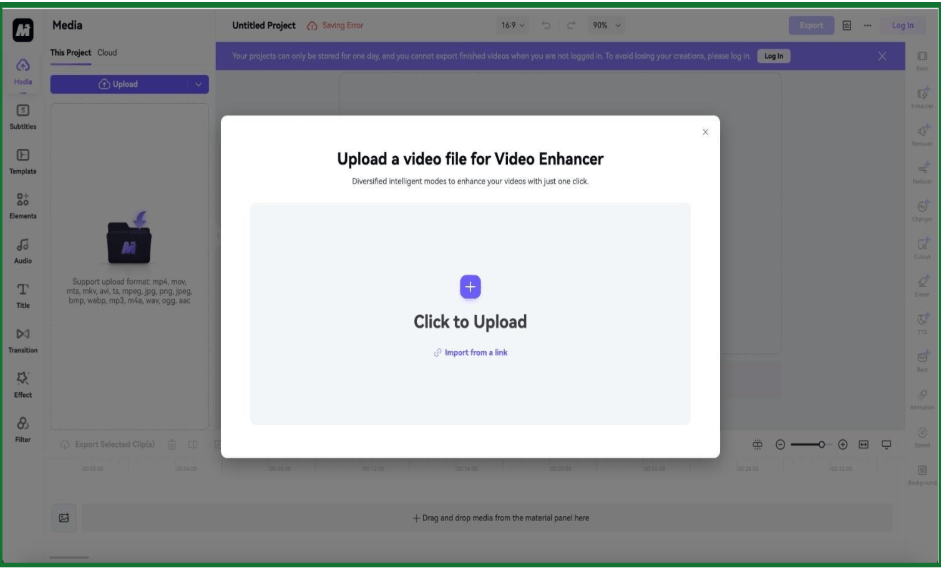
STEP 1. Upload the Original Video
You need to open an account with the platform, so go to the video upscaler and do that. Then click the “Click to Upload” button to locate and upload the video. However, if the video you want to upscale is on an online platform like TikTok, click “Import from a link” to paste the URL.

STEP 2. Select an Enhancement Effect
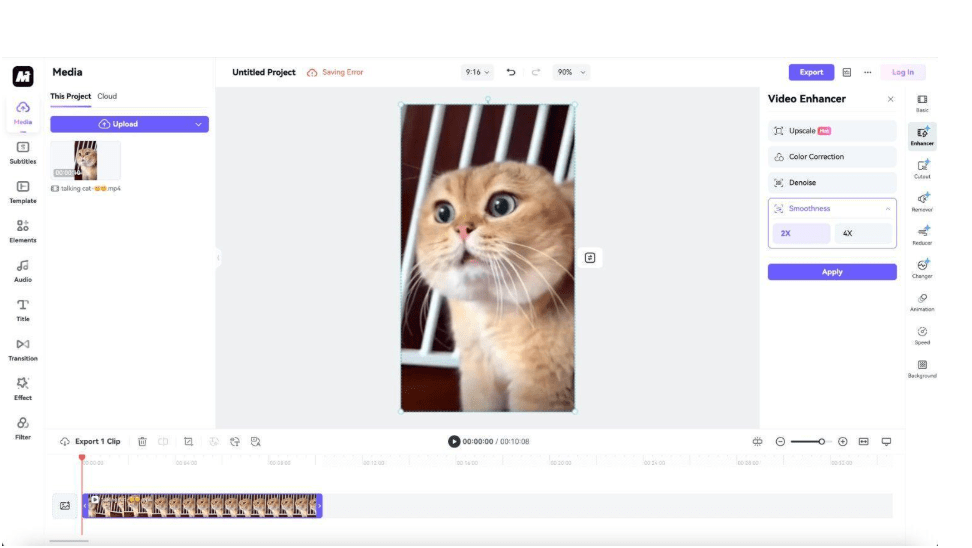
Once the video has been uploaded, look to the software’s right panel. Under “Video Enhancer,” you’ll see several options or models. Each model will give you different results, although the end goal is always to boost video quality. Select one and click “Apply.”

STEP 3. Preview and Download the Enhanced Video
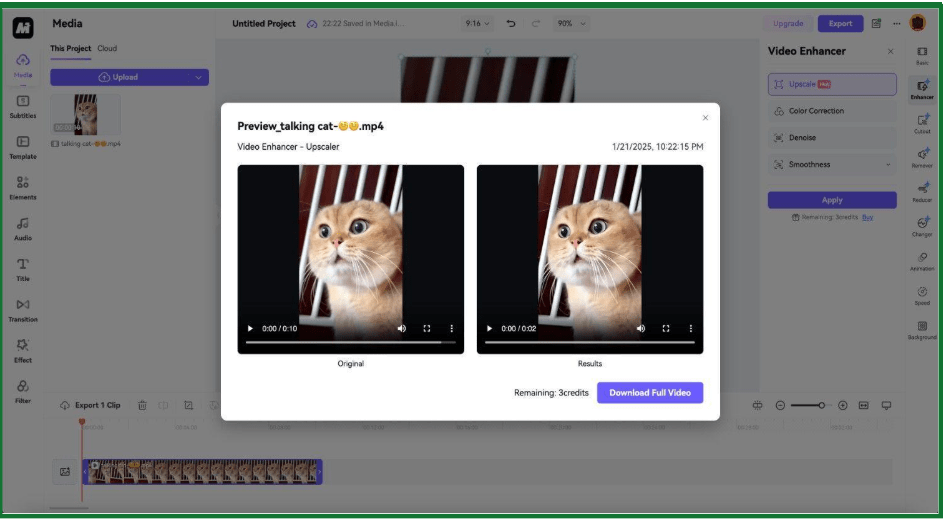
The video upscaler will take a few seconds to upscale the video. Once it has, a smaller window will show the new enhanced video on the right and the original video on the left. Preview the new clip and click “Download Full Video” to save it to your system.

Conclusion
To improve video quality, the first step is identifying the causes of your blurry videos. After that, you need to select a tool best for enhancing videos. In this article, I have already given you the best answer: Media.io AI Video Upscaler!
This easy-to-use software is efficient enough to upscale videos from as low a resolution as 240p to as high as 4K and is designed to save you time and resources! Besides, it also works to correct colors, reduce noise, and enhance transition smoothness, offering you a one-stop solution for video enhancement. Therefore, you can’t go wrong using Media.io AI Video Upscaler!